

The ECHS Beneficiary App provides an online facility for eligible ECHS beneficiaries to book medical appointments before visiting an ECHS Polyclinic. This can help beneficiaries reduce waiting time and plan their visit according to the available appointment slots.
The official ECHS website currently provides links for the ECHS Beneficiary Android App and iOS App, and ECHS documents have also listed online appointment booking as one of the mobile app facilities.
Below is a simple step-by-step guide based on the appointment-booking process shown in the infographic.
ECHS Online Appointment Booking Through ECHS App
The online appointment process can broadly be completed in the following steps:
Login → Book Appointment → Select RC/Polyclinic/Date/Doctor → Select Time Slot → Confirm Appointment → Visit Polyclinic
Step 1: Login to the ECHS Beneficiary App
Open the ECHS Beneficiary App on your mobile phone.
Enter:
- ECHS Smart Card Number
- 4-digit Mobile PIN
The Smart Card number should be entered as required by the app. After entering the details, tap “Login to eClinic.”
Important: Keep your registered mobile and ECHS beneficiary login details available before starting the process.
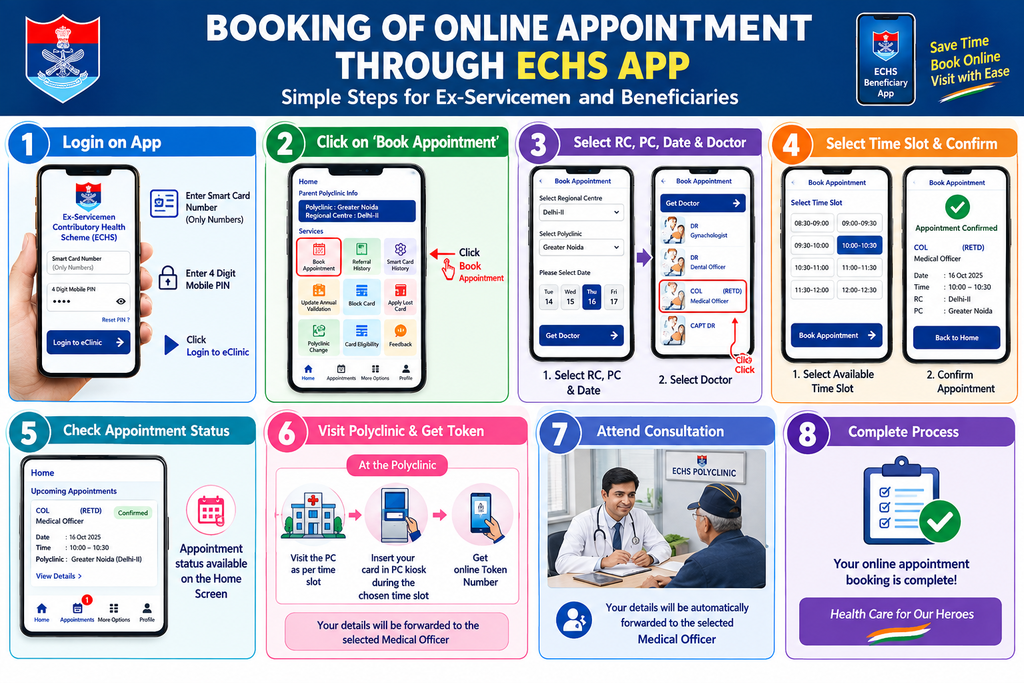
Step 2: Select “Book Appointment”
After successful login, the app home screen displays different services.
Select:
Book Appointment
The ECHS mobile application has been designed to provide beneficiaries with access to online appointment booking and other ECHS-related services.
Step 3: Select Regional Centre, Polyclinic, Date and Doctor
The appointment screen requires the beneficiary to select the relevant details.
Generally, the process involves selecting:
- Regional Centre (RC)
- Polyclinic (PC)
- Date
- Doctor/Medical Officer
The available doctors and dates may depend on the selected ECHS Polyclinic and the appointment slots available in the system.
The official ECHS website also provides details of Regional Centres and Polyclinics, including contact information.
Step 4: Select the Available Time Slot
After selecting the doctor, the app displays available appointment time slots.
Choose a suitable available time slot and proceed with Book Appointment.
The availability of a particular slot may vary depending on the Polyclinic, doctor and date selected.
Step 5: Appointment Confirmation
After successfully booking the slot, the app displays an Appointment Confirmed message.
The confirmation screen can contain details such as:
- Doctor/Medical Officer
- Appointment date
- Appointment time
- Regional Centre
- Polyclinic
Beneficiaries should carefully check these details before visiting the Polyclinic.
Step 6: Check Appointment Status from Home Screen
The booked appointment can subsequently be viewed from the Home Screen under upcoming appointments.
This allows the beneficiary to check important information such as:
- Appointment status
- Date
- Time
- Polyclinic
- Doctor/Medical Officer
The ECHS mobile application has been intended to provide beneficiaries with information and services related to their Polyclinic and appointments.
Step 7: What to Do at the ECHS Polyclinic
Booking an online appointment does not necessarily mean that the beneficiary can simply leave without completing the Polyclinic’s attendance/token process.
According to the infographic, after reaching the selected Polyclinic, the beneficiary should:
- Visit the Polyclinic according to the allotted time slot.
- Insert the ECHS card at the designated PC kiosk, where applicable.
- Opt for the online token number.
- The beneficiary details are forwarded to the selected Medical Officer.
- Attend the consultation according to the online token number.
Beneficiaries should follow the instructions of the concerned ECHS Polyclinic on arrival.
Step 8: Complete the Medical Consultation
Once the beneficiary’s token is called, the concerned Medical Officer will attend to the beneficiary.
This completes the online appointment booking and consultation process.
ECHS Online Appointment: Quick Process
| Step | Action |
| 1 | Login to ECHS Beneficiary App |
| 2 | Enter Smart Card Number and Mobile PIN |
| 3 | Select Book Appointment |
| 4 | Select Regional Centre |
| 5 | Select ECHS Polyclinic |
| 6 | Select Date |
| 7 | Select Doctor |
| 8 | Select Available Time Slot |
| 9 | Confirm Appointment |
| 10 | Visit Polyclinic as per appointment |
| 11 | Complete kiosk/token process, where applicable |
| 12 | Attend Medical Officer |
Important Points for ECHS Beneficiaries
1. Check the appointment details carefully
Before leaving for the Polyclinic, check the date, time, Polyclinic and doctor displayed in the app.
2. Reach the Polyclinic according to the allotted slot
Beneficiaries should plan their visit according to the appointment time and follow the local instructions of the concerned Polyclinic.
3. Keep the ECHS Smart Card available
The Smart Card may be required during the Polyclinic visit and for identification/processing.
4. Appointment availability may vary
Not every doctor or time slot may be available on every date. If the preferred slot is unavailable, beneficiaries may need to select another available date, doctor or time.
5. Check official ECHS updates
ECHS periodically issues new policies, advisories and procedures. The official ECHS website currently lists several 2026 policy updates and provides links to the Android and iOS beneficiary applications.
Frequently Asked Questions
How can I book an ECHS appointment online?
Eligible beneficiaries can use the ECHS Beneficiary App to log in and select Book Appointment, followed by the Regional Centre, Polyclinic, date, doctor and available time slot.
Which app is used for ECHS online appointment booking?
The official ECHS website provides links for the ECHS Beneficiary Android App and iOS App.
Can I check my ECHS appointment after booking?
Yes. The appointment can be viewed through the app’s appointment/home-screen section, according to the available app functionality.
What details are required to log in?
The process shown in the provided ECHS infographic requires the ECHS Smart Card Number and a 4-digit Mobile PIN.
Do I need to visit the Polyclinic after booking online?
Yes. Online appointment booking is intended to schedule the visit. The beneficiary still needs to attend the concerned ECHS Polyclinic and complete the applicable token/attendance process.
What if my preferred appointment slot is unavailable?
Check other available dates, doctors or time slots displayed by the app. Availability depends on the selected Polyclinic and appointment schedule.
Conclusion
The ECHS online appointment facility can make visits to ECHS Polyclinics more convenient by allowing beneficiaries to select an available doctor and appointment slot through the mobile app before visiting the Polyclinic.
For Ex-Servicemen, pensioners and other eligible ECHS beneficiaries, understanding the complete process—from ECHS App login to appointment confirmation and Polyclinic token processing—can help avoid confusion during the visit.
Always verify the latest instructions through the official ECHS website or the concerned ECHS Polyclinic, as app features and procedures may be updated from time to time.